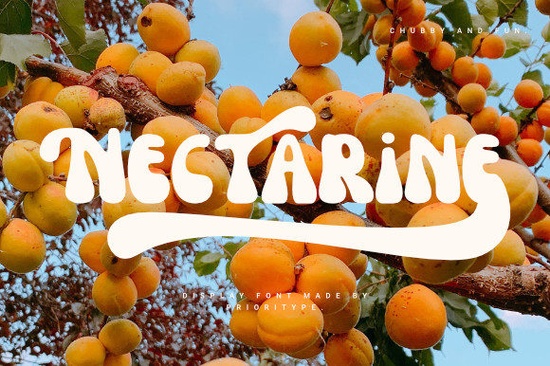
If you are looking for a display font that combines a cool retro vibe with clean readability, Nectarine Font is worth checking out. This typeface brings back the aesthetic of mid-century design while remaining fully functional for modern projects. With its PUA encoding, you can easily access all the alternate glyphs and decorative swashes without any complicated software. Whether you are working on logos, posters, or social media graphics, Nectarine Font adds a touch of nostalgia that feels fresh at the same time.
Creative designers and print-on-demand sellers often search for display fonts that capture a specific mood. Nectarine Font fits perfectly into that category because of its balanced letterforms and playful curves. It works well for branding, packaging, and even wedding invitations if you want a retro feel. If you enjoy this style, you may also like chalk-style display fonts for a more handcrafted look, or collegiate display fonts for a bold, academic touch.
What makes Nectarine Font different from other retro fonts?
Many retro fonts sacrifice readability for style, but Nectarine strikes a good balance. The letterforms are clearly defined, making it suitable for short headlines and medium-sized text. The font includes a set of swashes and alternate characters that you can activate with a simple toggle in most design software. Because it is PUA encoded, you do not need extra plugins to use those extras. This means you can quickly add flourishes to the beginning or end of words, or swap out standard letters for more ornate versions.
Another thing that sets it apart is the variety of glyphs. You get uppercase and lowercase letters, numbers, punctuation, and a selection of ligatures. This gives you many options to customize your designs without starting from scratch. For example, you can create a vintage-looking poster by combining the standard letters with a swash at the end of a title.
How do you access the swashes and alternate glyphs?
If you use software like Adobe Illustrator, Photoshop, or Affinity Designer, accessing the extras is straightforward. Simply open the Glyphs panel (usually under Window > Type > Glyphs) and look for the Nectarine Font family. The swashes and alternates will appear there, often grouped by type. Some programs also let you turn on stylistic sets or contextual alternates directly in the character panel. This makes it easy to mix and match without remembering each glyph’s code.
For users of simpler tools like Canva or Cricut Design Space, you can still use the swashes by copying and pasting them from a character map. Many font foundries provide a guide or a PDF showing all available glyphs. Check the product page for any extras that come with the download.
Where can you use Nectarine Font in your projects?
This font works best for display purposes think headlines, titles, logos, banners, and short quotes. Its retro character makes it especially good for:
- Brand identity – Coffee shops, bakeries, clothing lines, or any business aiming for a mid-century modern look.
- Print-on-demand products – T-shirts, mugs, tote bags, and stickers with bold, nostalgic text.
- Social media graphics – Instagram stories, YouTube thumbnails, or Pinterest pins that need a standout title.
- Event invitations – Wedding invitations, birthday party flyers, or retro-themed gatherings.
- Packaging design – Product labels that want a handmade, vintage feel.
If you need a second font to pair with Nectarine, try a simple sans-serif like Helvetica or Montserrat for body text. The contrast between the decorative display font and a clean sans-serif keeps the design readable while giving it character.
What file formats come with Nectarine Font?
Typically, you will receive both OTF (OpenType) and TTF (TrueType) formats. OTF is preferable for most professional design software because it supports more advanced typographic features. TTF works well across different operating systems and applications. Both formats are compatible with Windows and Mac. Make sure to download the correct version for your system. After installing, you may need to restart your design program for the font to appear.
For more retro display fonts like this one, browse the dedicated category on Creative Fabrica. You will find similar typefaces that share the same cool, vintage spirit.
Quick checklist before you use Nectarine Font
- Check that your design software supports OpenType features (most do, but older versions may not).
- Test the swashes and alternates in a small file to see how they behave.
- Pair it with a simple sans-serif for body text or keep it as a standalone headline font.
- Review the license terms some fonts restrict commercial use or limit the number of projects.
- Download your font files and install them properly. If you get a ZIP file, unzip it first.
Once you have everything ready, try creating a simple poster with a short phrase and experiment with the swashes. You can find Nectarine Font at Creative Fabrica along with hundreds of other display fonts. Start with a single project and see how the retro style transforms your work.
Download Now Crafting a Distinctive University Font Library
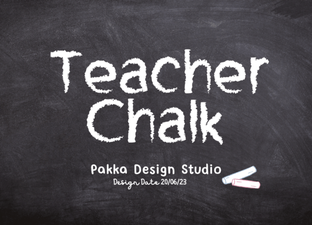 Chalkboard Fonts for Creative Design Projects
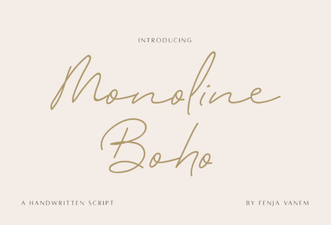 Monoline Boho Font Free Download
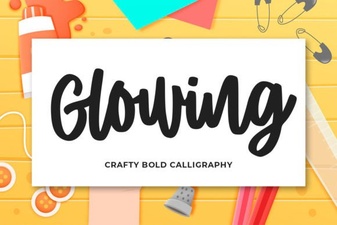 Craft Elegant Glowing Fonts for Your Designs
 Design Bold Ideas with Afraty Stencil Font
 Pink Sunset Font Designs for Creative Projects